 RemoScreen
English
Help articles
Help CenterGet startedUsing RemoScreen for the first time: install the free RemoScreen Host on your Mac, enter the 8-digit pairing code on your iPad or iPhone, and connect once the Mac allows it.
Help CenterDisplay modes and desktop sizeHow RemoScreen's three display modes differ (extended display, main display and mirror display) and the three desktop sizes: “Fit iPad”, “Larger text” and “More space”.
Help CenterTouch, keyboard and typingRemoScreen gestures for clicking, double-clicking, dragging, scrolling and right-clicking; “Show pointer” on iPhone; keyboards, trackpads and mice; and typing into the Mac with your iPad or iPhone keyboard and dictation.
Help CenterSound, clipboard and filesHear the Mac on your iPad or iPhone, paste text in both directions, and send photos, videos and files to the Mac (up to 100 MB each); between two Macs, drag files across and share the clipboard.
Help CenterConnecting across networksHow RemoScreen chooses a connection: directly over the local network on the same network; on different networks it tries IPv6, UDP hole punching and router port mapping; if that fails, through a relay you deploy yourself.
Help CenterMac permissions and setupRemoScreen Host needs two permissions, “Screen & System Audio Recording” and “Accessibility”; how to set up a Mac with no display the first time; and what to know after the Mac restarts.
Help CenterSecurity and privacyHow RemoScreen protects your Mac: an 8-digit one-time pairing code, approval on the Mac for every device, encryption for picture and input, a registration service that only helps devices pair, and access you can revoke at any time.
Help CenterTrial, purchase and restoreRemoScreen starts with a 7-day free trial with no automatic charge, then a one-time purchase that covers iPad and iPhone on the same Apple Account; restore it in Settings → Purchase & Restore. RemoScreen Host for Mac is free.RelayDeployment guideDeploy a RemoScreen relay on your own Linux server: download, initialize, start, add it on Mac and iPad, then update, roll back or uninstall.
Use cases
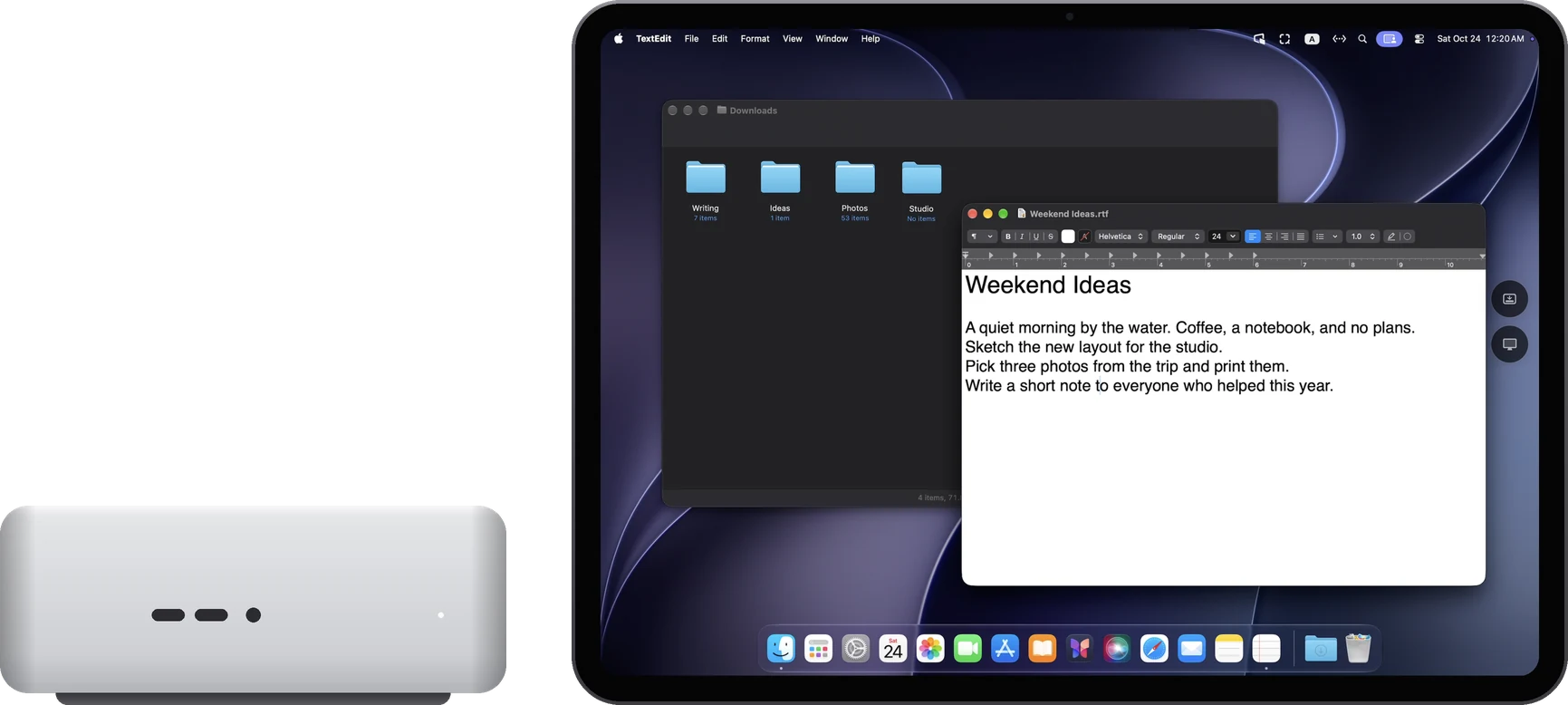
Use casesMac mini without a displayA Mac mini with no display attached can use an iPad or iPhone as its screen: RemoScreen Host creates a Retina display for it, you control it with your fingers, and sound, typing and the clipboard all work. Host is free; the app has a 7-day free trial.
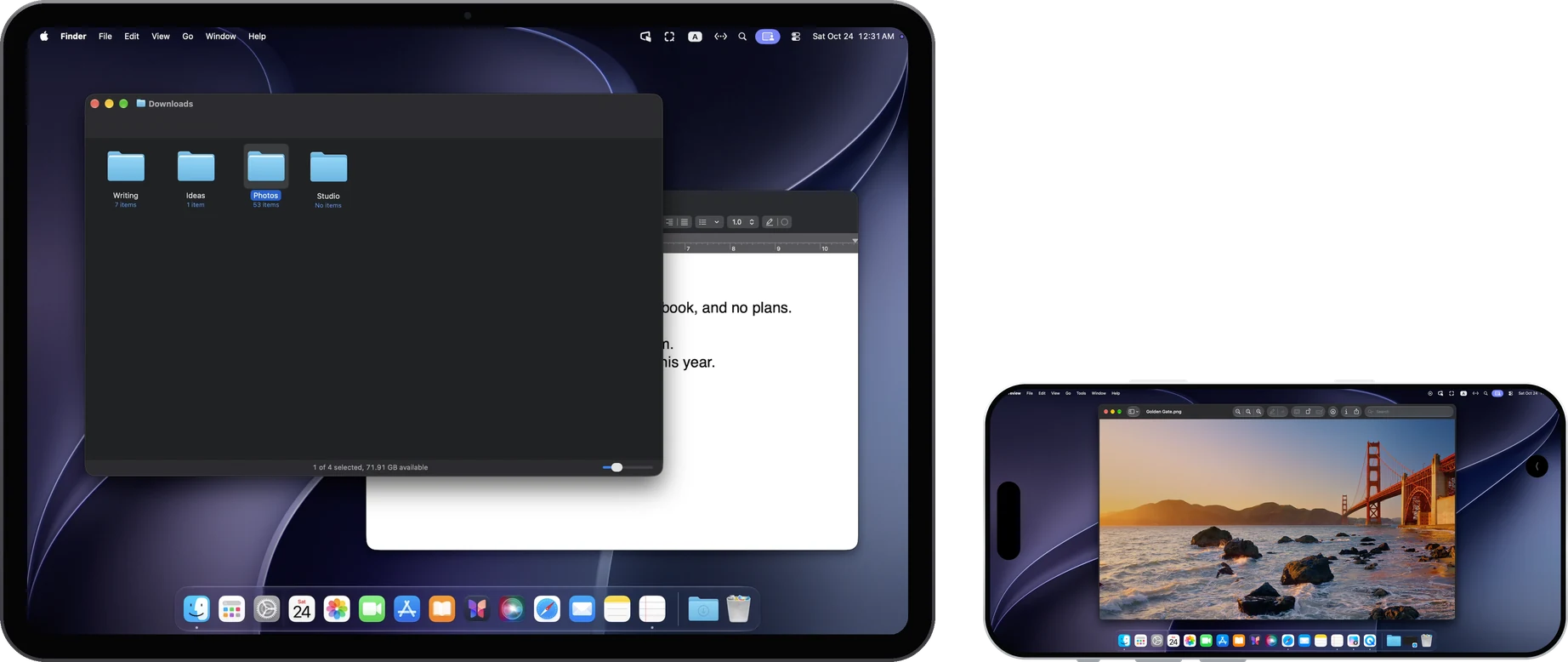
Use casesControl a Mac remotelyFrom another room or a meeting room, use your iPad or iPhone to control your Mac directly: tap, type with your own keyboard, hear the Mac, and share text and files. Instant on the same network; across networks, through your own relay.
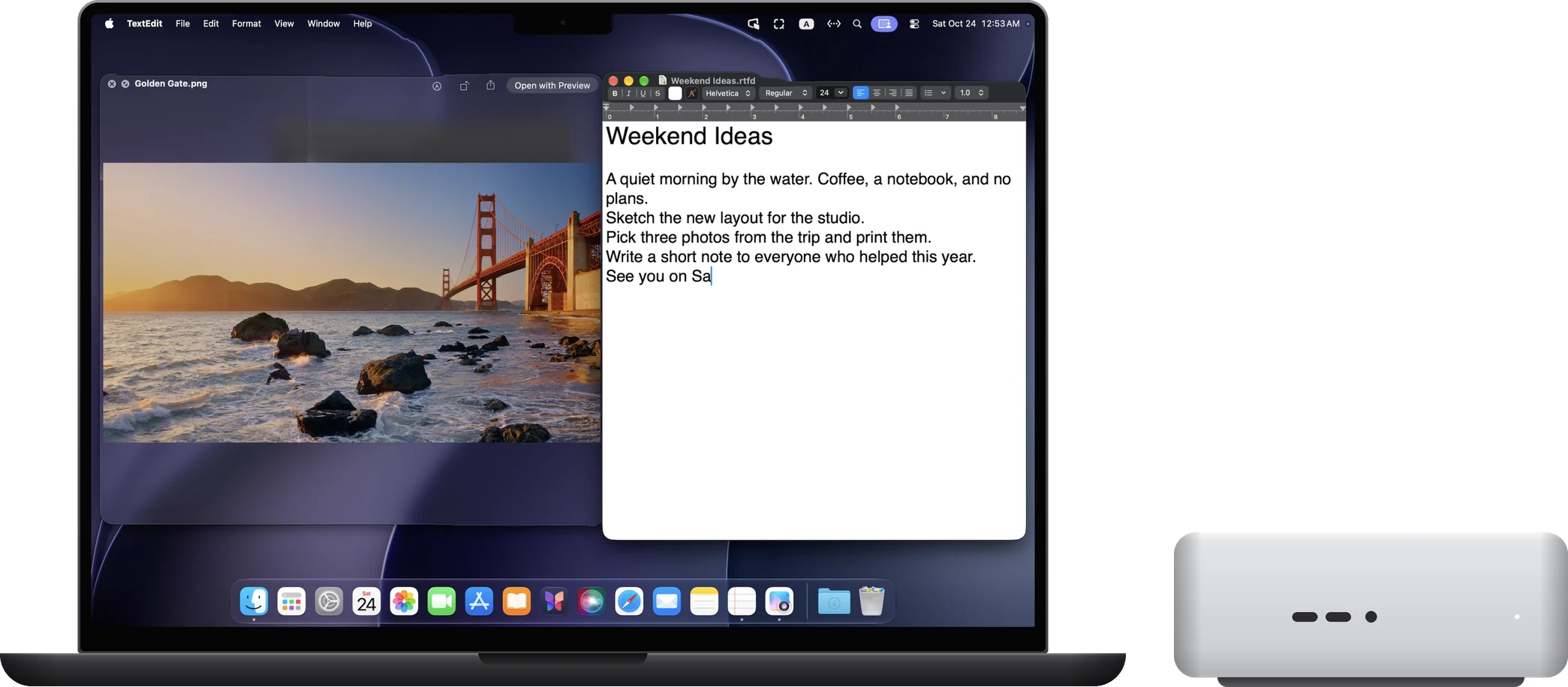
Use casesMac to MacInstall the free RemoScreen Host on both Macs and use your MacBook to control the Mac mini in your study: extended, main or mirror display, drag files across, shared clipboard.
Still have questions?
Write to hello@noysd.com, or send a ticket from Settings → Support tickets in RemoScreen. Our replies appear there too.