Help Center

Touch, keyboard and typing

No Apple Pencil needed. Tap with your fingers, connect a keyboard and trackpad, and it works like a Mac.

Gestures on iPad

  • Tap: click
  • Tap twice: double-click
  • Touch and hold, then drag: drag files, select text
  • Swipe with one finger: scroll
  • Tap with two fingers: right-click
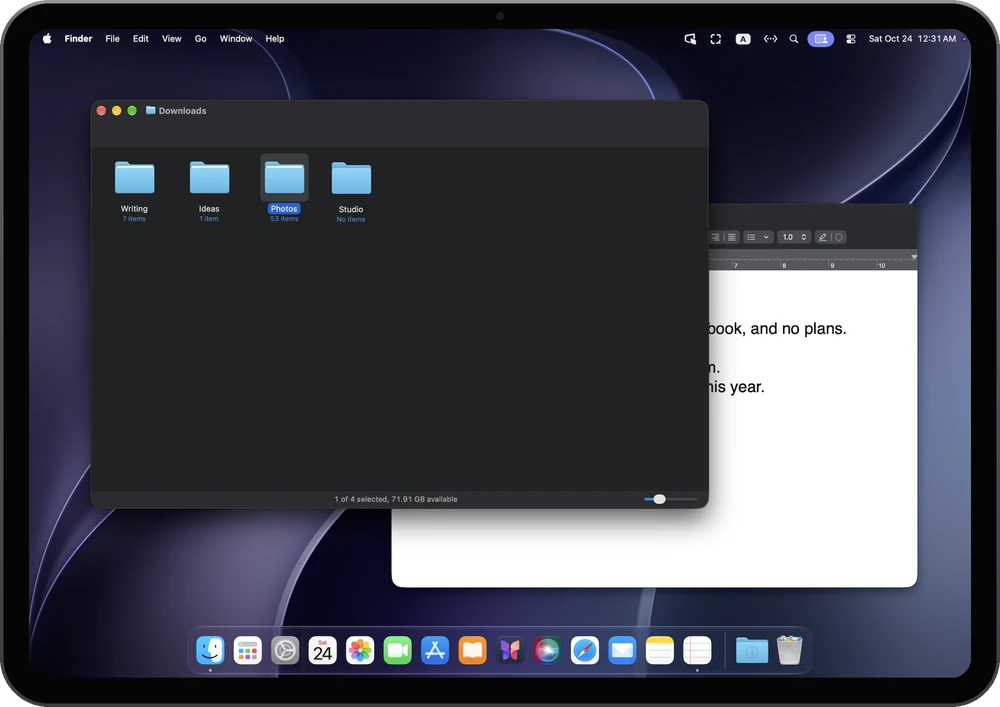
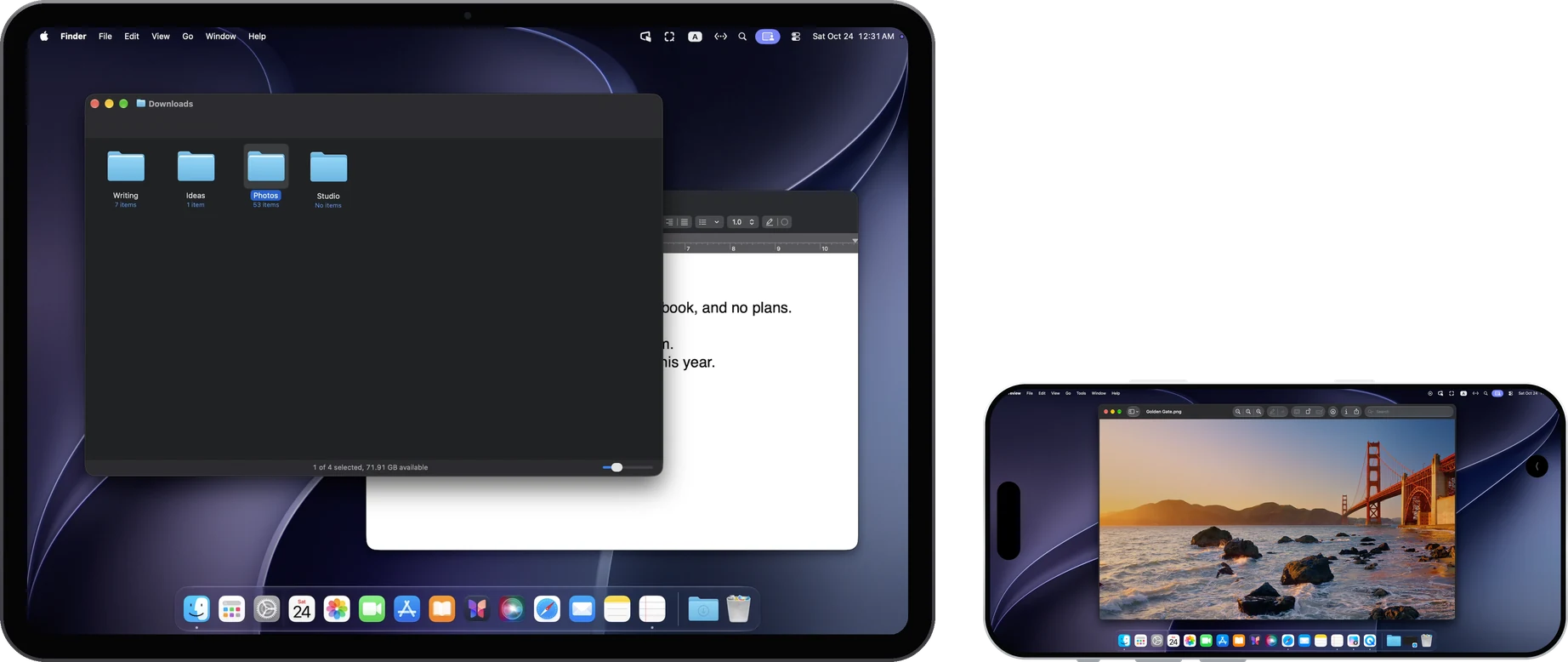
Opening a folder in the Mac's Finder on an iPad

Gestures on iPhone

  • Tap: click
  • Swipe with one finger: scroll
  • Touch and hold, then drag: drag
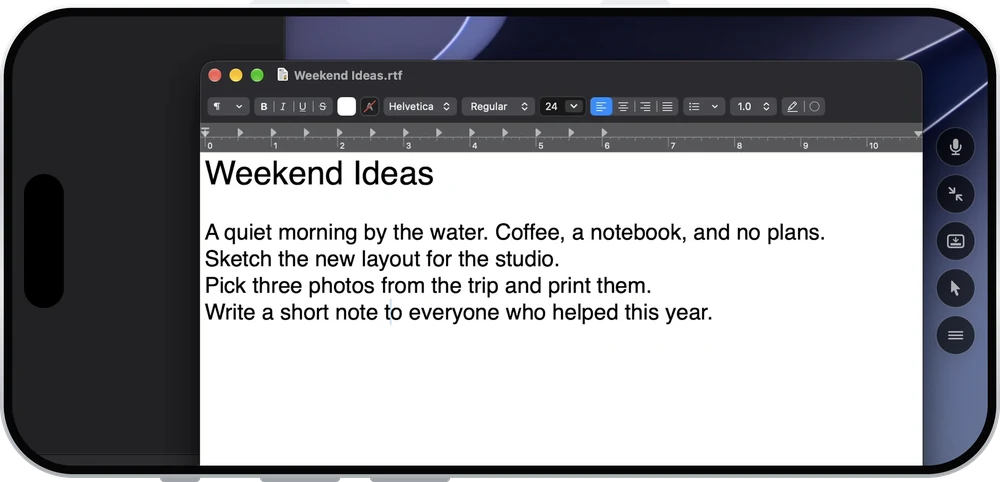
  • Two fingers: zoom and move around
Zooming into the Mac's screen with two fingers on an iPhone

Show pointer

When you need to click precisely on iPhone, turn on “Show pointer”. The iPhone screen becomes a trackpad, so your finger never covers the pointer. Dragging with three fingers works like on a Mac trackpad: press at the pointer and drag to move or resize a window.
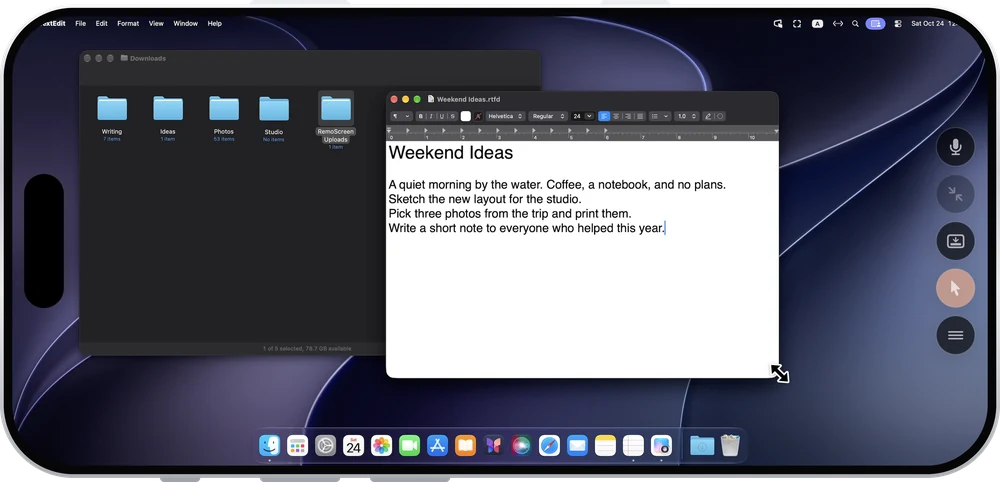
Resizing a window with “Show pointer” on an iPhone

Keyboard, trackpad and mouse

Connect a keyboard, trackpad or mouse to the iPad and it's like sitting at the Mac, with shortcuts such as ⌘C and ⌘V.

Type with your own keyboard

The iPad or iPhone keyboard appears only when you tap a text field on the Mac. Type in your language or use dictation, and the words go straight to the Mac.
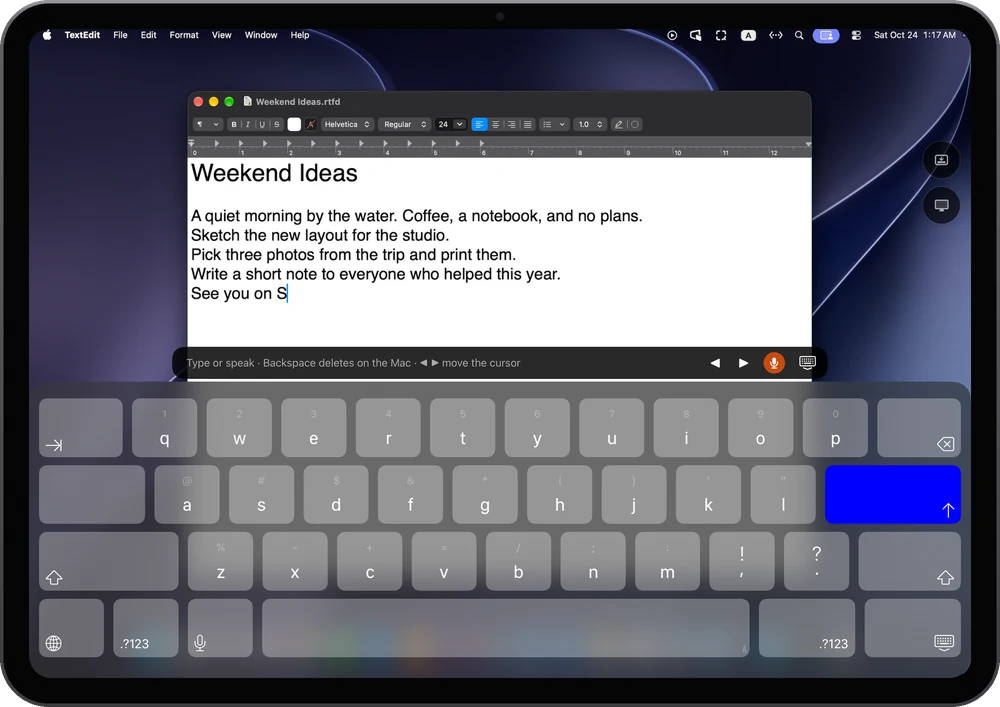
The iPad keyboard typing into a document on the Mac

Related

Use casesControl a Mac remotelyFrom another room or a meeting room, use your iPad or iPhone to control your Mac directly: tap, type with your own keyboard, hear the Mac, and share text and files. Instant on the same network; across networks, through your own relay.
Help CenterSound, clipboard and filesHear the Mac on your iPad or iPhone, paste text in both directions, and send photos, videos and files to the Mac (up to 100 MB each); between two Macs, drag files across and share the clipboard. Help CenterDisplay modes and desktop sizeHow RemoScreen's three display modes differ (extended display, main display and mirror display) and the three desktop sizes: “Fit iPad”, “Larger text” and “More space”.

Still have questions?

Write to hello@noysd.com, or send a ticket from Settings → Support tickets in RemoScreen. Our replies appear there too.

Contact us