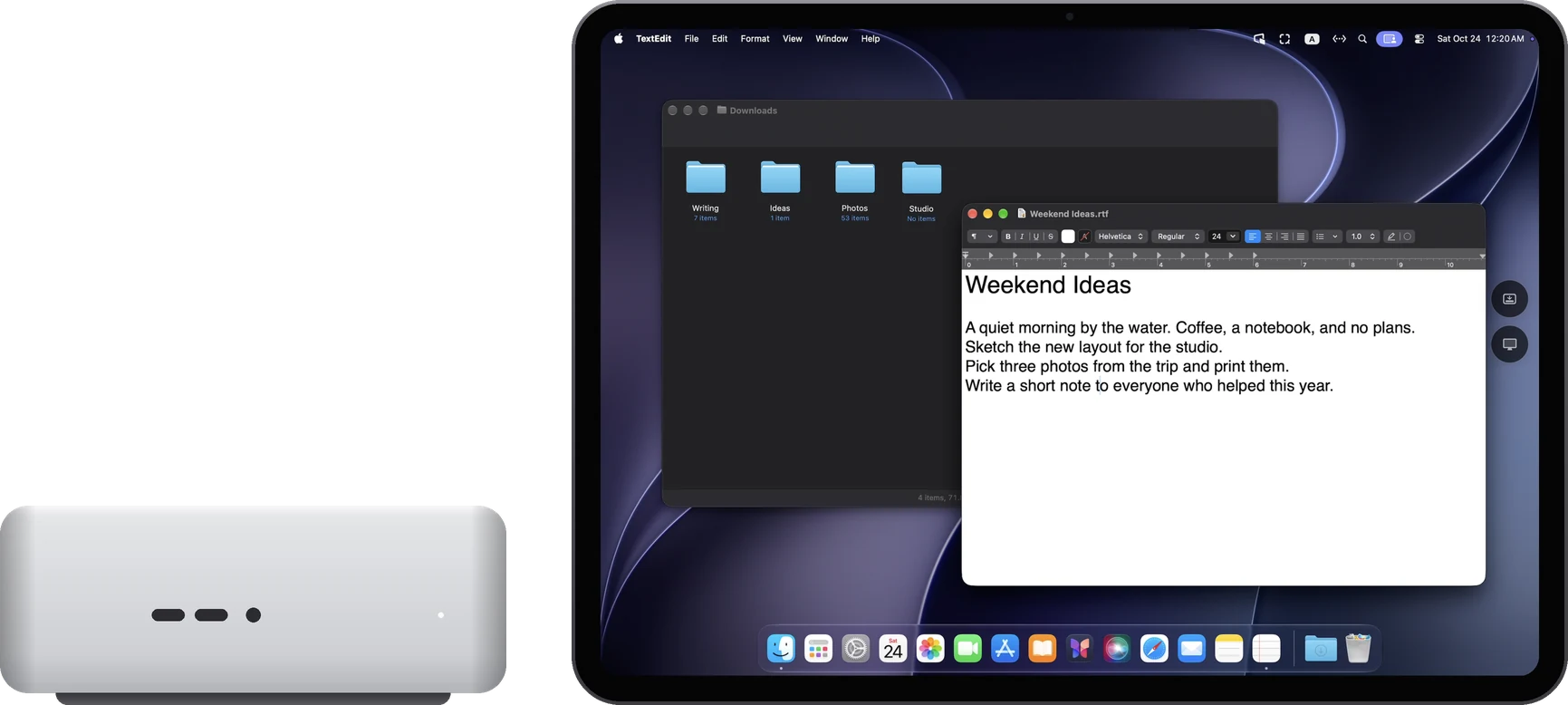
Extended display
Your Mac's own screens stay as they are. The iPad is one more screen, and you can drag windows onto it. Good for giving a MacBook a second screen. It works even when the iPad and Mac use different Apple Accounts.
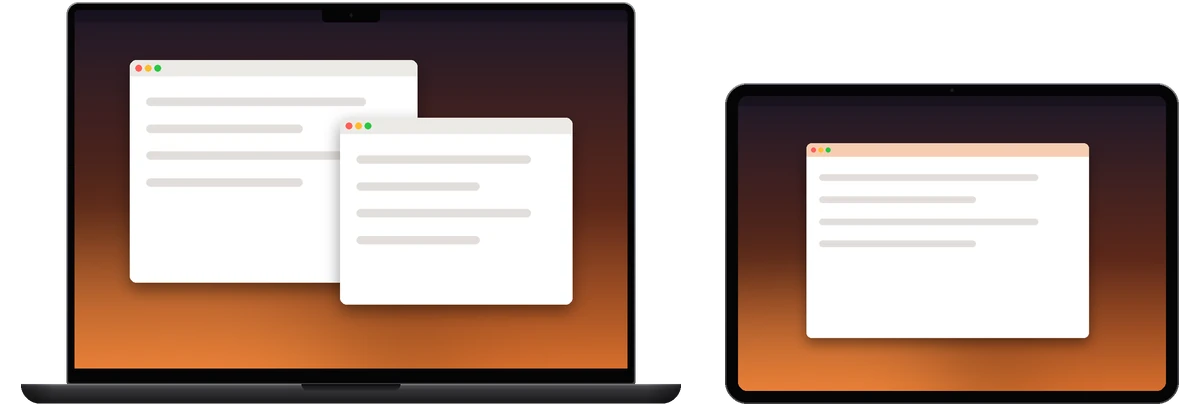
Main display
Shown only on the iPad. The Mac's own screens, including a laptop's built-in display, go dark for now and come back when you disconnect. Good for using the Mac mini, iMac or Mac Studio in your study from the sofa. It also works with a Mac that has no display: RemoScreen Host creates one for it automatically.
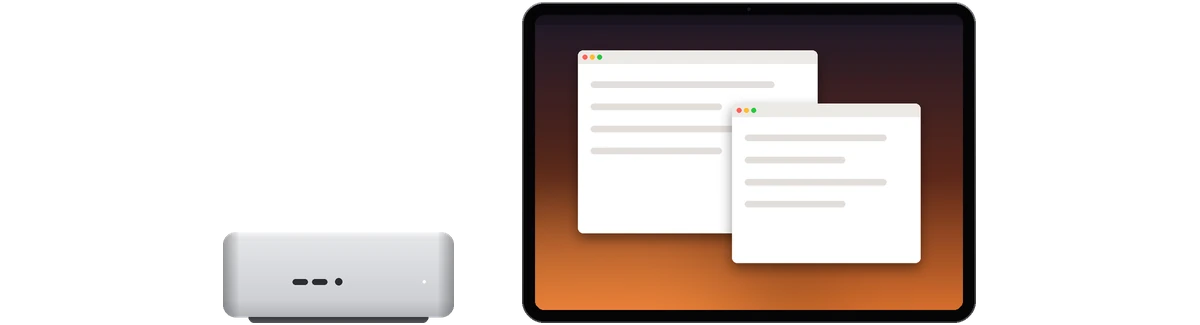
Mirror display
The iPad shows the same picture as the Mac's main display, at that display's resolution. Good for keeping an eye on a task running on the Mac from another room.
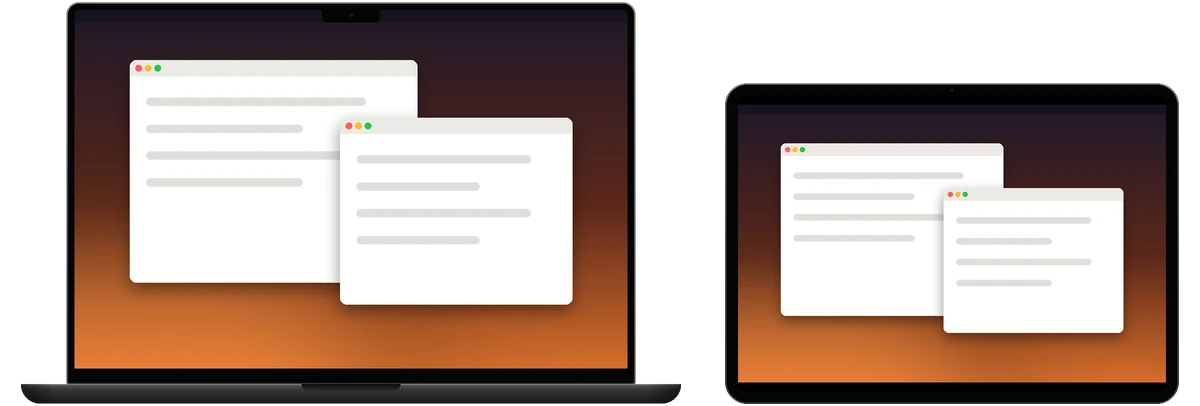
Desktop size
As an extended or main display, the Mac creates a 2x HiDPI Retina display at this iPad's native resolution. “Desktop size” in the menu has three settings:
- Fit iPad (default): matches the iPad's real screen pixels, with nothing stretched.
- Larger text: a smaller desktop with larger text and interface.
- More space: a bigger desktop that fits more windows.
The iPhone has “Desktop size” too, with “Fit iPhone” by default. Mirror display follows the resolution of the Mac's own display.
When another Mac is in control
Mac-to-Mac control has the same three ways to use it.