 RemoScreen
English

How it fits together
iPad, iPhone or another Mac
can control your Mac
The Mac you control runs the free RemoScreen Host. The connection is chosen automatically, and everything is encrypted on the way.

iPad
RemoScreen App
Extended, main or mirror

iPhone
RemoScreen App
Sideways, it's your Mac's screen

Another Mac
Built into RemoScreen Host
Free, nothing extra to buy
Connects automatically
Tries each option for your networks

Your Mac
Runs RemoScreen Host (free)
MacBook, iMac, Mac mini
or Mac Studio
Helps devices pair and find each other, never sees the picture
Control from iPad or iPhone
Install the RemoScreen app. Try it free for 7 days, then buy once for both iPad and iPhone.
Control from another Mac
Install the free RemoScreen Host on both Macs. There's nothing else to buy.
Three ways to use it
One iPad, three ways to use it
Switch from the menu once connected. It also works with a Mac mini that has no display: RemoScreen Host creates a display for it automatically.
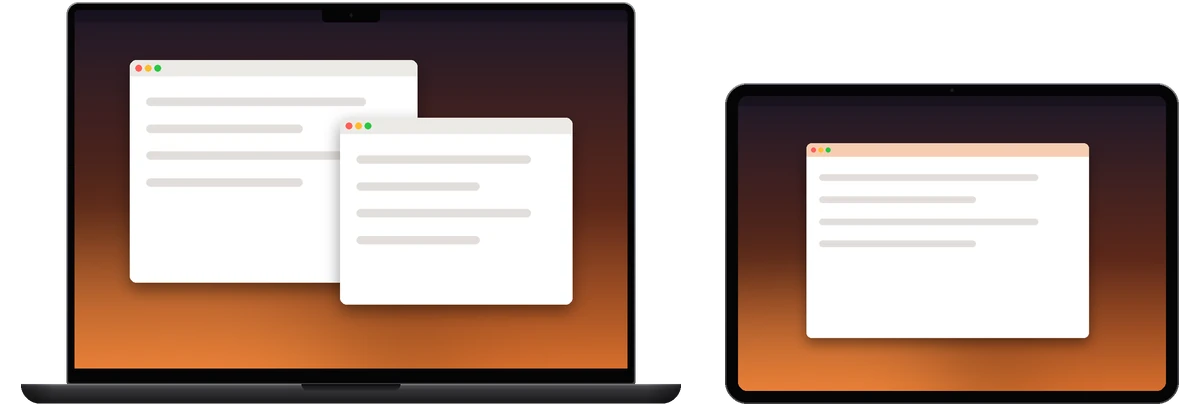
Extended display
Your Mac's own screens stay as they are. The iPad is one more screen, and you can drag windows onto it.
Good for: giving a MacBook a second screen
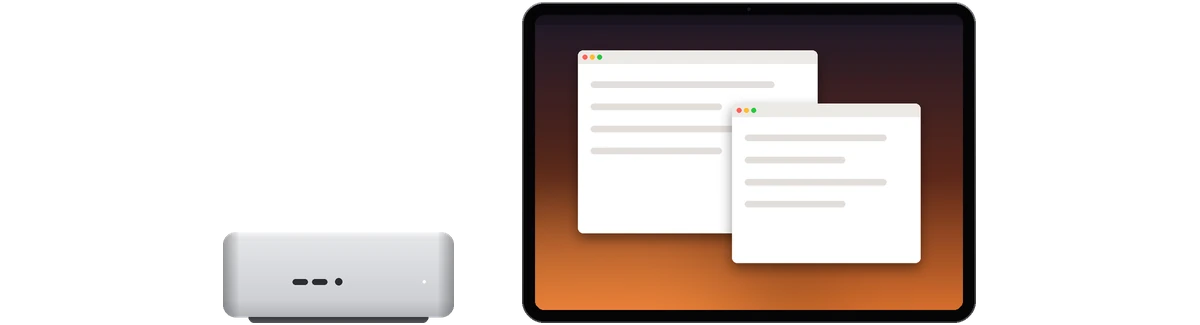
Main display
Shown only on the iPad. The Mac's own screens, including a laptop's built-in display, go dark for now and come back when you disconnect.
Good for: using the Mac mini, iMac or Mac Studio in your study from the sofa
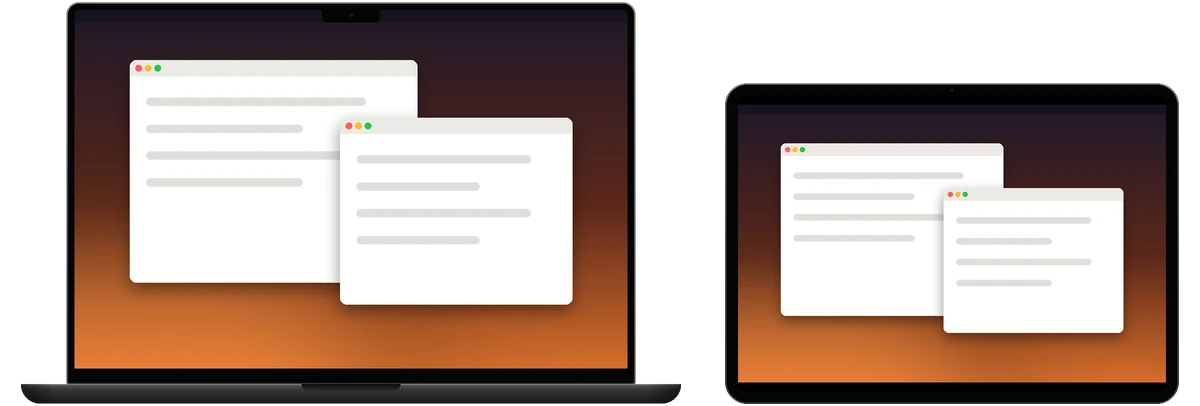
Mirror display
The iPad shows the same picture as the Mac's main display, at that display's resolution.
Good for: keeping an eye on a task running on the Mac from another room
Retina
A real extra display,
not a shrunken copy
As an extended or main display, the Mac creates a 2x HiDPI Retina display at this iPad's native resolution. A 13-inch iPad Pro (2752×2064), for example, gets a 1376×1032 Retina desktop with crisp text.
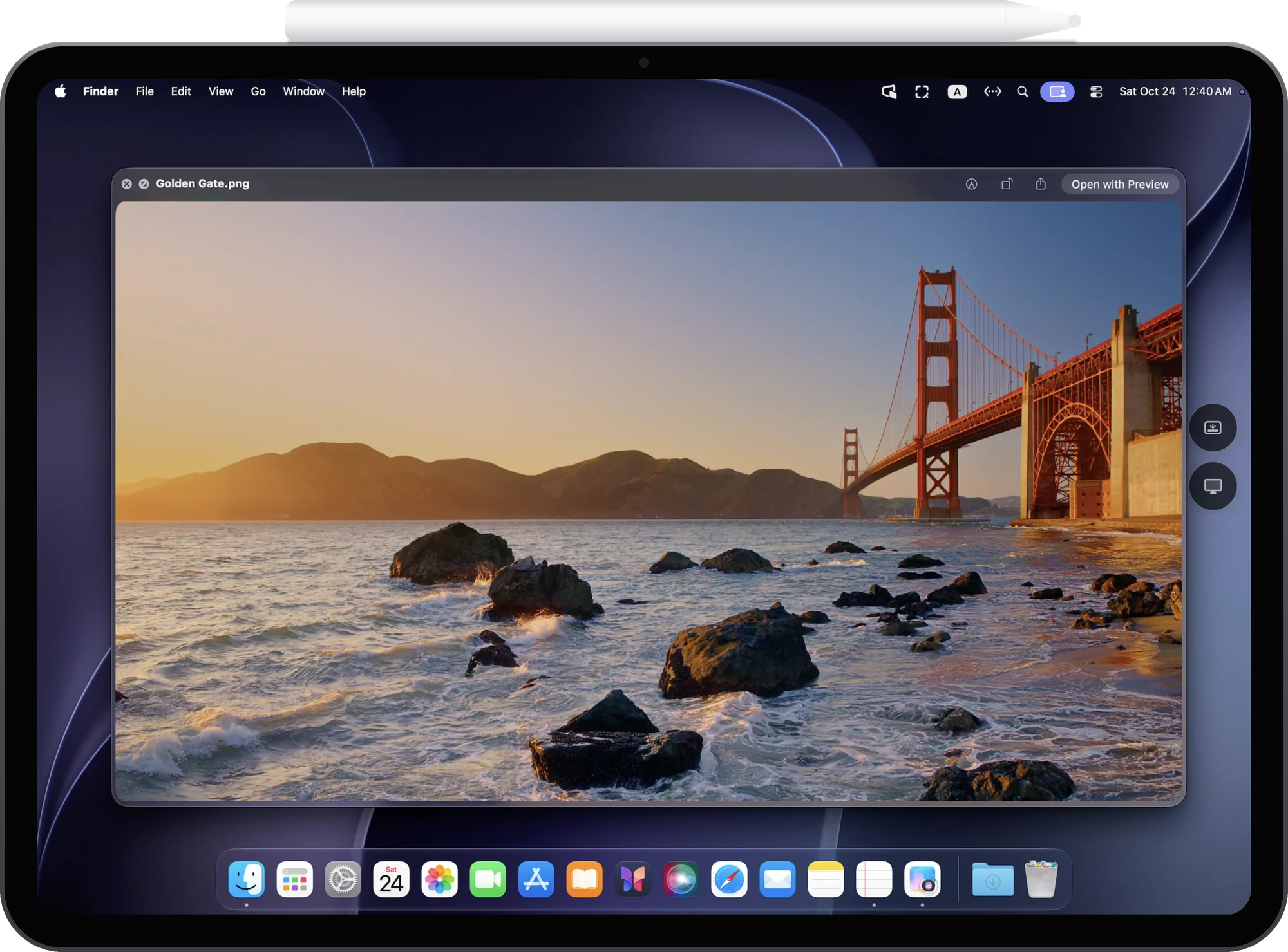

Native iPad resolution
A display built from each iPad's physical pixels
2x HiDPI
Text and interface rendered for Retina
Three desktop sizes
“Fit iPad” by default, or choose more space
Just like sitting at your Mac
Reach out and use it
No Apple Pencil needed. Connect a keyboard, trackpad or mouse and it works like a Mac, with shortcuts such as ⌘C and ⌘V.
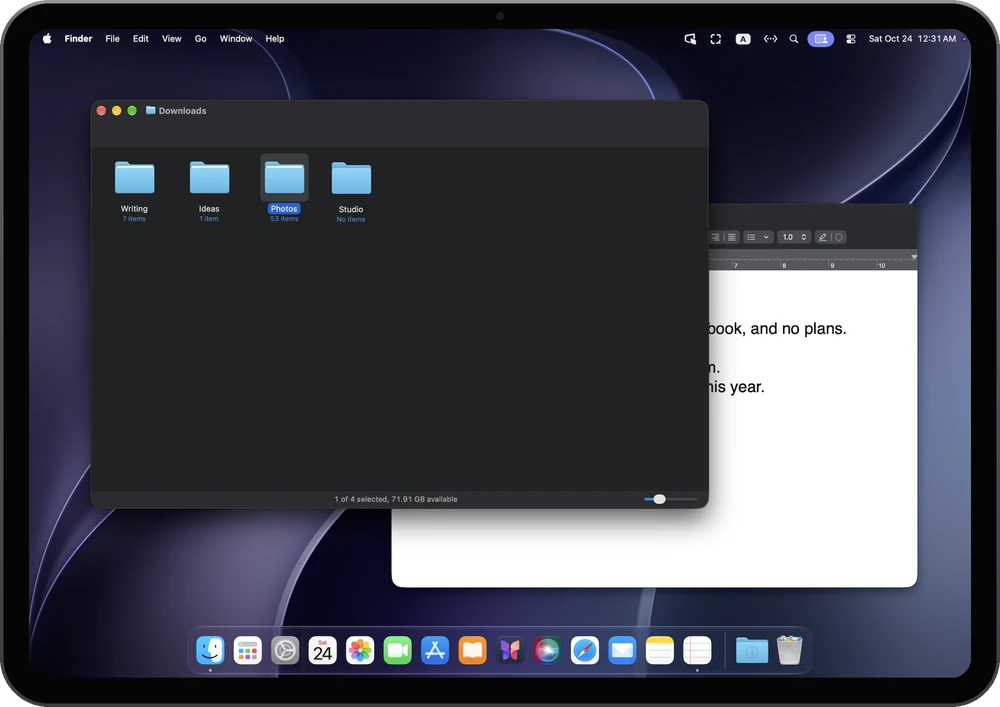
Tap right on the screen
Tap to click, tap twice to double-click, touch and hold to drag, swipe with one finger to scroll, and tap with two fingers to right-click.
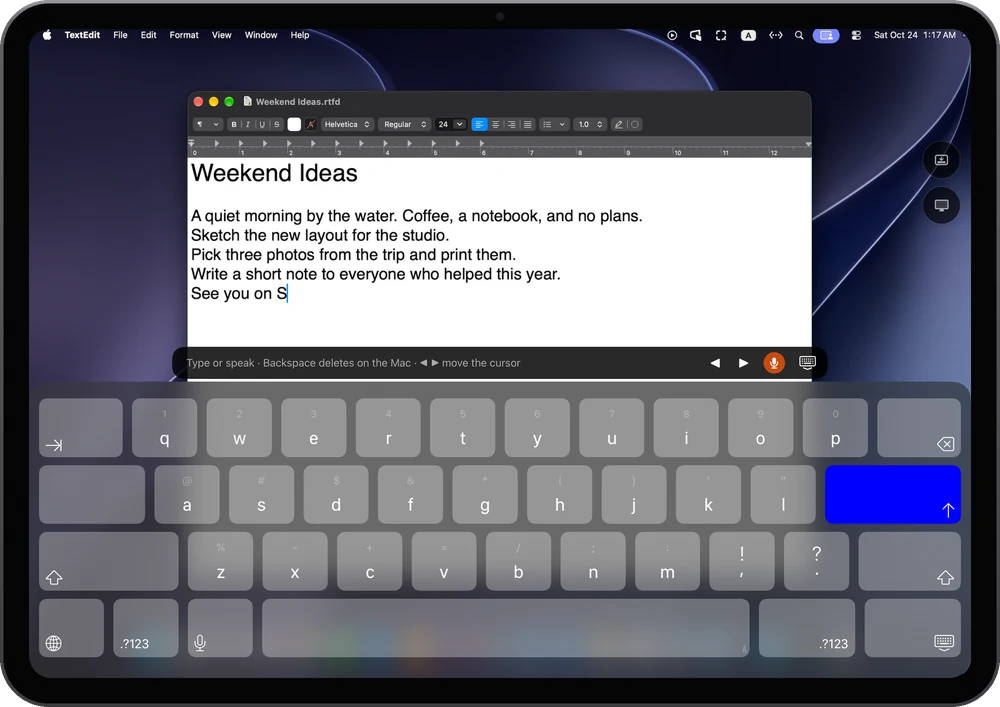
Type with the iPad keyboard
Tap into a text field on the Mac and the iPad keyboard appears. You can use dictation too, and your words go straight to the Mac.
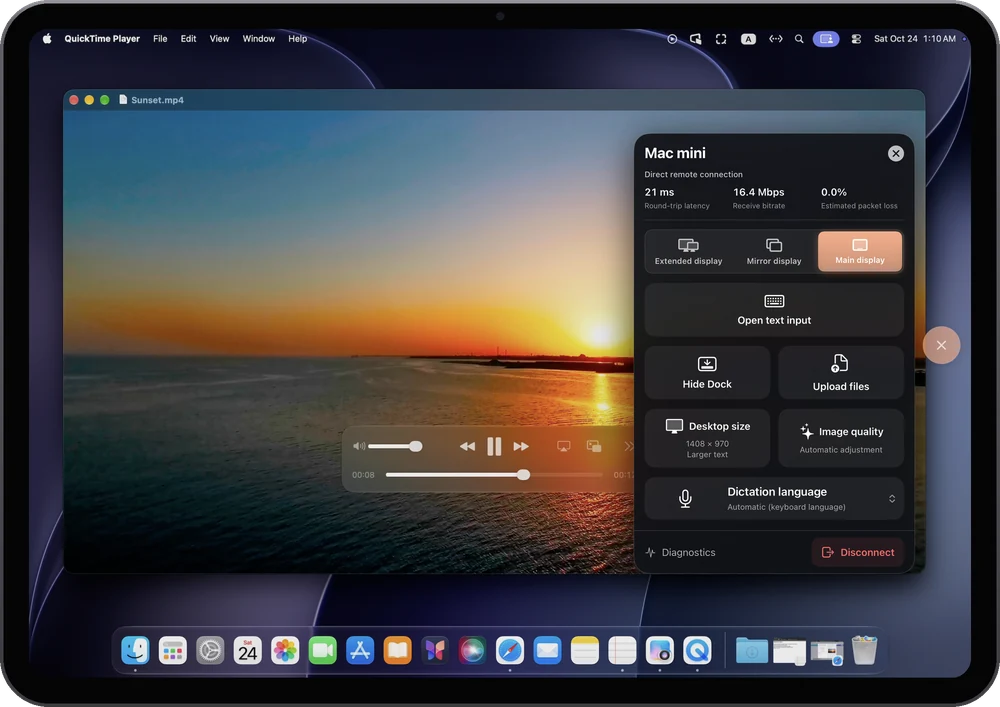
Sound, clipboard and files
The Mac's sound plays on the iPad. Copied text pastes on either side. Send photos, videos and files to the Mac, up to 100 MB each.
iPhone
iPhone works too.
Turn it sideways for your Mac's screen
One app and one purchase cover both iPad and iPhone. It works even when the Mac has no display attached.

Works like your phone
Tap to click, swipe with one finger to scroll, touch and hold to drag, and use two fingers to zoom and move around.
A pointer when you need precision
The iPhone screen becomes a trackpad, so your finger never covers the pointer. Drag with three fingers to move and resize windows.
Type with the iPhone keyboard
The keyboard appears only when you tap a text field on the Mac. Type in your language or use dictation.
Mac to Mac
Use your MacBook
to work on the Mac mini in your study
Mac-to-Mac control is built into RemoScreen Host, for free. Install Host on both Macs, and you're connected once the other Mac clicks “Allow”.
- All three ways: extended, main and mirror
- Drag files across: between the two Macs, in either direction
- Shared clipboard: copy and paste text, images and files
Mac-to-Mac control does not carry sound yet.

Use cases
When your iPad becomes your Mac's screen
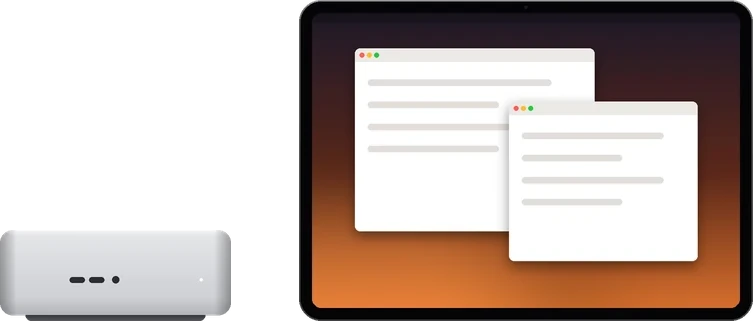
Main display
A Mac mini with no display
Use your iPad as its screen. RemoScreen Host creates a display for it automatically.
Main display
Your study's Mac, from the sofa
The Mac's own screen goes dark for now and comes back when you disconnect.
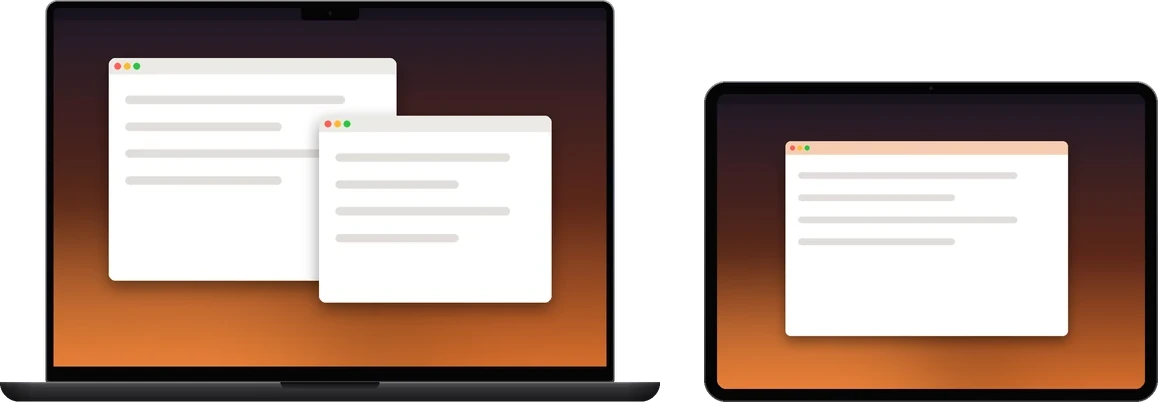
Extended display
One more screen for your MacBook
Works even when the iPad and Mac use different Apple Accounts.
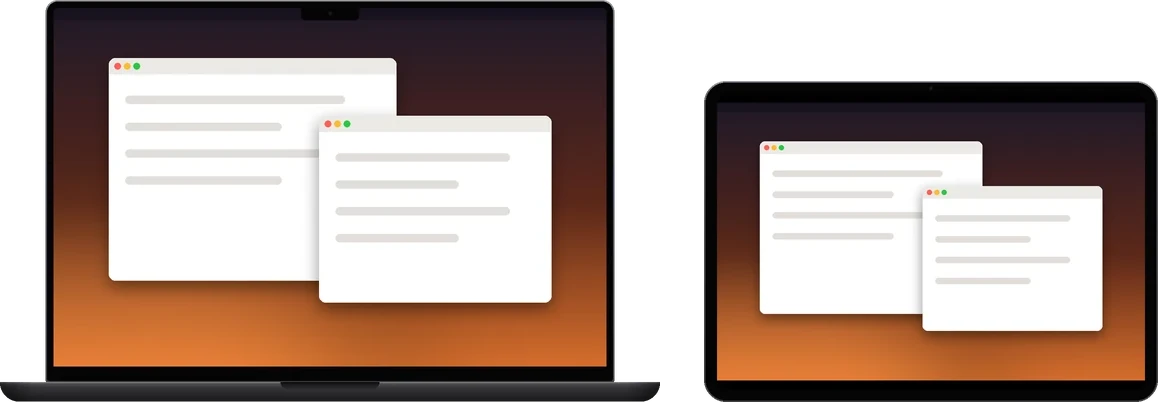
Mirror or main display
Your desk Mac, from the meeting room
On the same office network, take your iPad to a meeting room or lounge and keep using the Mac at your desk.
Security & privacy
Every device needs
the Mac to click “Allow”
No account
No sign-up, and no shared Apple Account required.
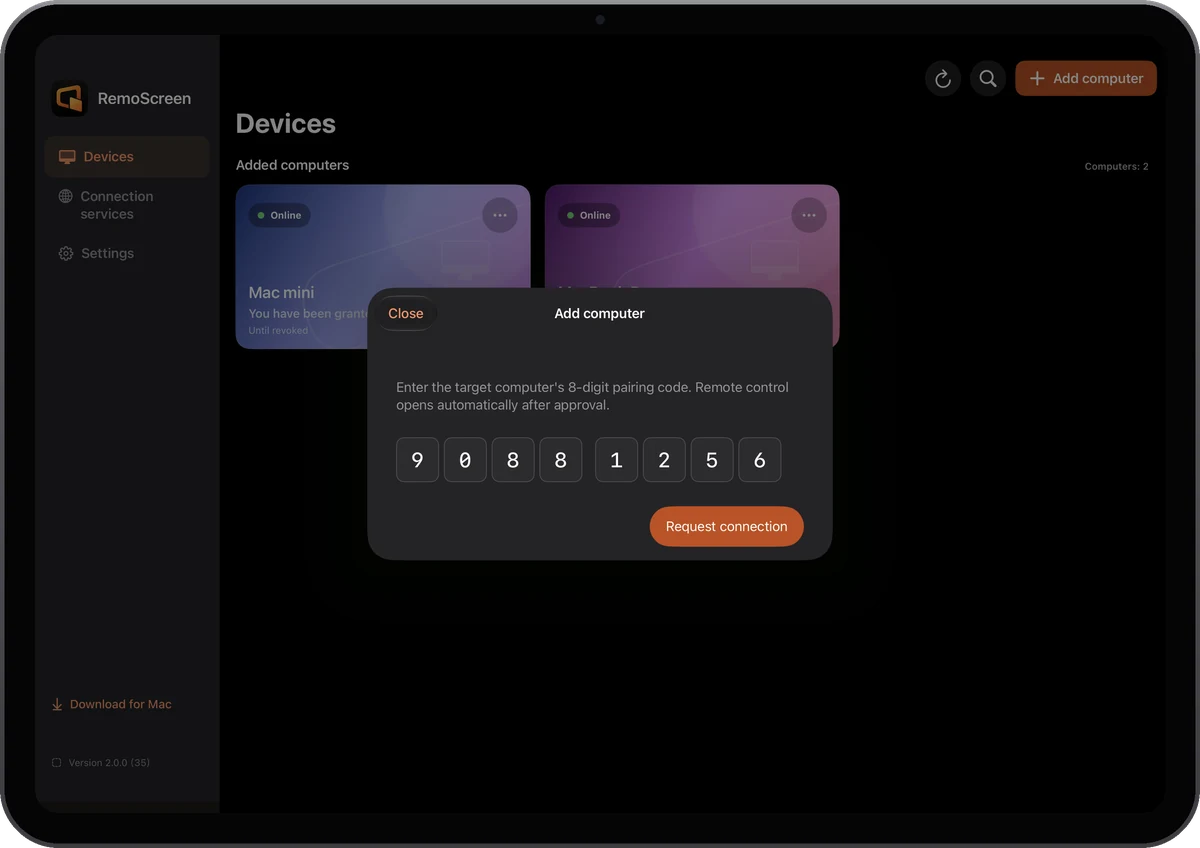
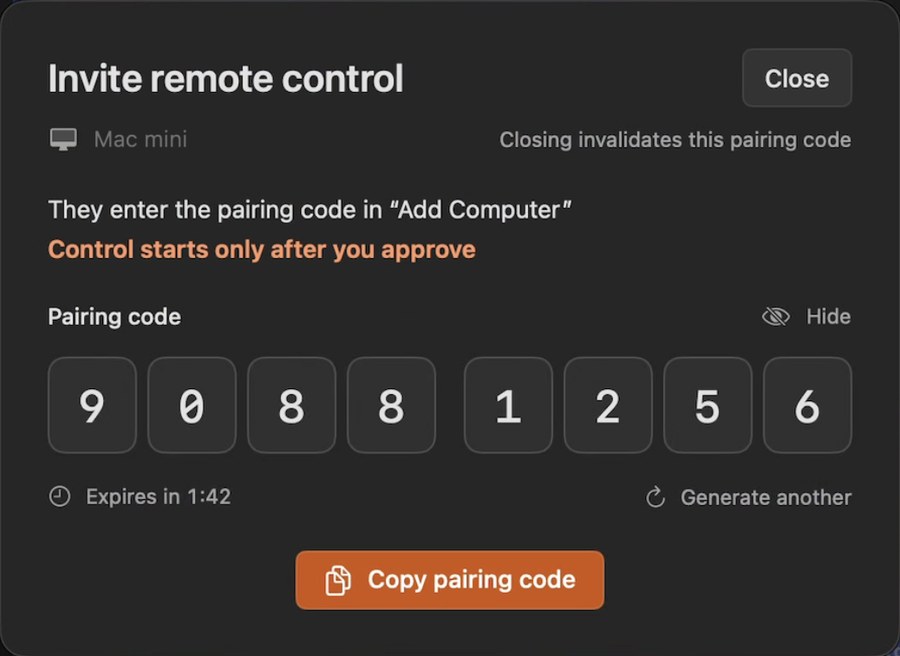
8-digit pairing code, then the Mac allows it
Enter the 8-digit pairing code shown on the Mac on your iPad or iPhone. It connects only after the Mac clicks “Allow”.
Encrypted, not through our servers
Picture and sound travel directly between your devices. Pairing only uses the registration service to exchange network addresses.
Connections & your own relay
Same network: connect and go.
Across networks: use your own relay.
RemoScreen doesn't offer a public relay, and the picture never passes through our servers. To connect across networks, you can deploy a relay on your own Linux server, for your devices only.
Same network: direct LAN
When the Mac and iPad are on the same network, they connect directly and instantly.
Different networks: direct first
Automatically tries IPv6, UDP hole punching and router port mapping (UPnP, NAT-PMP, PCP). Whether it connects depends on both networks.
No direct path: through your relay
When both sides can reach your server, they connect through the relay. It only forwards encrypted data and cannot read the picture, keystrokes or clipboard.
For your devices only
Access key
The relay only accepts devices with an access key, and you can revoke keys on the server.
Plus the Mac's permission
A key isn't enough: the relay forwards only for devices the Mac has already allowed.
Keys stay on your devices
Access keys live in each device's keychain and are not synced. You can add several relays, say one at home and one at work.
Clarity depends on server bandwidth
The relay adapts to what actually gets through. 8–16 Mbps of server bandwidth gives a comfortable picture.
Deploy a relay
- 1Get a Linux server (x86_64; ARM64 is in testing), a domain and a valid HTTPS certificate, and open two ports in the firewall and security group.
- 2Download the relay package, verify its SHA256 checksum and extract it.
- 3Run remoscreen-setup to initialize, then start remoscreen-service with systemd.
- 4On the Mac, iPad and iPhone, open “Connection services → Add server” and enter the server address and access key.
# Example: domain connect.example.com, HTTPS 8443, relay TCP 9443
./remoscreen-setup -directory /var/lib/remoscreen/relay \
  -role relay -name RemoScreen \
  -control-url https://connect.example.com:8443/v2/control \
  -relay-host connect.example.com -relay-tcp-port 9443
Get started
Three steps
01
Install RemoScreen Host on your Mac
Free. When asked, allow “Screen & System Audio Recording” and “Accessibility”.
02
Add the computer on iPad or iPhone
Install RemoScreen, tap “Add computer” and enter the 8-digit pairing code shown on the Mac. To control from another Mac, add it in that Mac's RemoScreen Host.
03
Click “Allow” on the Mac
Once connected, choose extended, main or mirror.
iPad: iPadOS 17 or later · iPhone: iOS 17 or later · Mac: Apple silicon, macOS 14 or later
The iPad and iPhone app is coming soon to the App Store.
Pricing
Try it for 7 days, then buy once
Free trial
7 days
Every feature, and no automatic charge when it ends. Try it on your own network first.
Full version
Buy once
- No subscription
- Works on iPad and iPhone with the same Apple Account
- Restore it in Settings → Purchase & Restore
RemoScreen Host for Mac
Free
Install it on the Mac you want to use. Controlling another Mac with it is free too.
Prices vary by country or region. The App Store shows the price for yours.
Frequently asked questions
Does it work when the devices aren't on the same network?
On the same network, it connects instantly. On different networks, it tries a direct connection automatically, and whether that works depends on both networks. Try it during the 7-day trial first. If a direct connection isn't possible, you can deploy your own relay.
Do I need an account?
No, and the iPad and Mac don't need the same Apple Account. The first time each device connects, enter the 8-digit pairing code shown on the Mac, then click “Allow” on the Mac.
Which Macs are supported?
Macs with Apple silicon running macOS 14 or later, including MacBook, iMac, Mac mini and Mac Studio. Intel-based Macs are not supported.
My Mac mini has no display. How do I set it up the first time?
To allow “Screen & System Audio Recording” and “Accessibility” the first time, you need to see the Mac's screen: connect a display temporarily, or use macOS Screen Sharing. After that, RemoScreen Host creates a display for it automatically.
After buying, can I use it on iPhone too?
Yes. The purchase is tied to your Apple Account, so it works on iPad and iPhone with that account, and the free trial counts only once.
Can one Mac control another Mac?
Yes, for free. Install RemoScreen Host on both Macs, and you're connected once the other Mac clicks “Allow”, with the same three ways to use it: extended, main and mirror. Mac-to-Mac control does not carry sound yet.
What do I need for my own relay?
A Linux server, a domain and a valid HTTPS certificate, with two ports open. Devices on both sides must be able to reach the server. See the deployment guide for the steps.
Contact us
Questions? Talk to us directly.
If something isn’t working, or you have an idea for the product, let us know.
Include the app version, OS version, time of the issue and steps to reproduce it. Do not send passwords, verification codes, pairing codes or private keys.
In the app
RemoScreenSettingsSupport tickets
Submit a ticket from RemoScreen on iPad, iPhone or Mac. Our replies show up there too.